
How to create Docker image on Docker Hub?
Article describes the process of creating and publishing a Docker image on Docker Hub to enhance CI/CD setup in Bitbucket Pipelines and GitHub Actions.
Using Docker is a perfect way to simplify task automation in Bitbucket Pipelines and GitHub Actions. It helps creating environment that is aligned with the project’s requirements, which can then be used on these platforms to define workflows.
In this article, I'll discuss the process of creating and publishing a Docker image on Docker Hub to enhance CI/CD configuration on Bitbucket Pipelines and GitHub Actions.
How to Prepare the Environment?
Docker Hub is a place that Bitbucket Pipelines and GitHub Actions use to run containers in their actions. To create and share an image there, you will need a few things: an account on Docker Hub, the Docker Desktop tool, and the docker command available in the terminal.
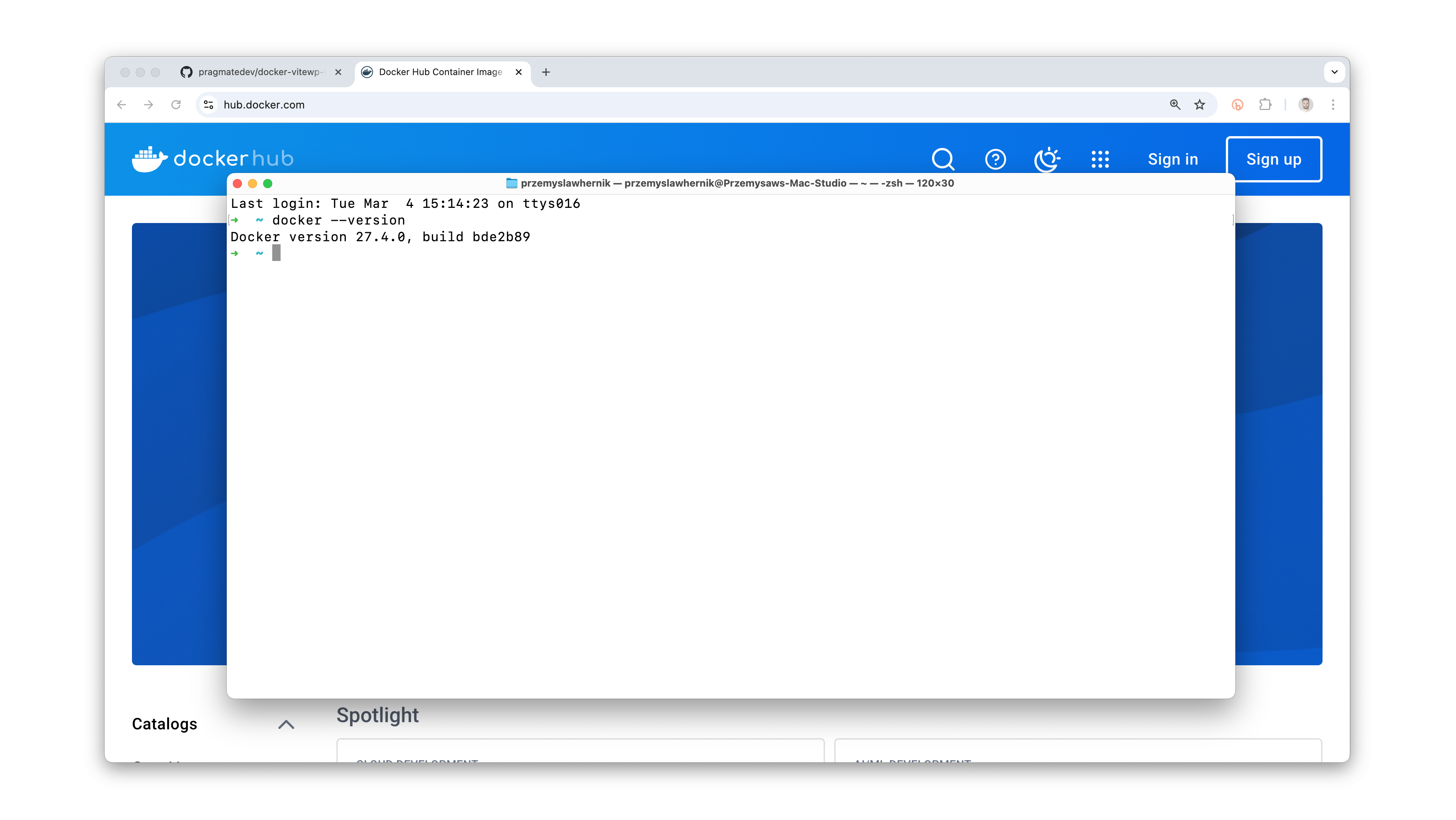
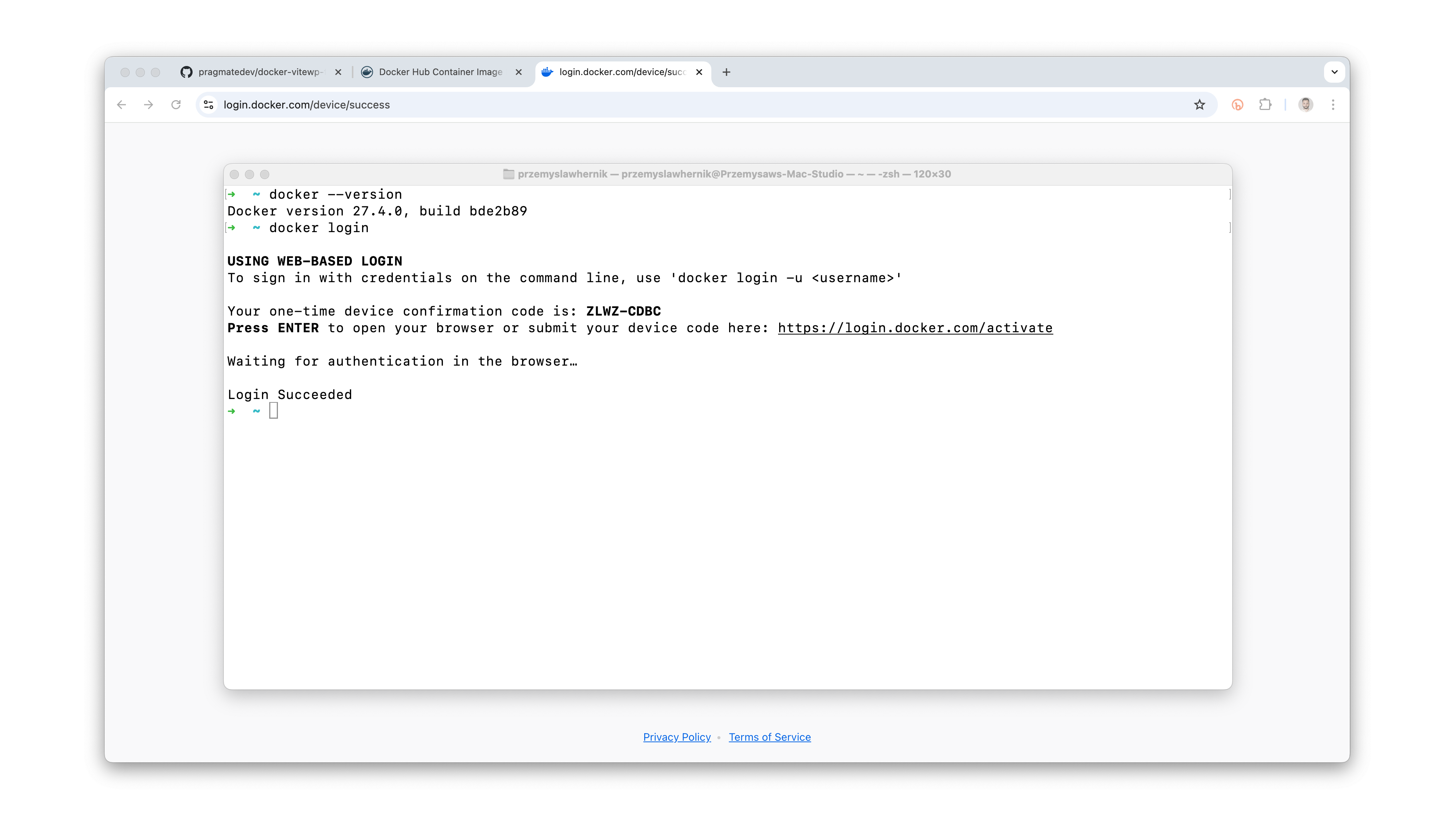
To connect to the account, open the terminal and enter the docker login command. It will open the browser, and upon successful login, it will authorize the session in the terminal. This is needed to push an image to the hub. Check out the official cheat sheet for a help.
How to create a Docker image?
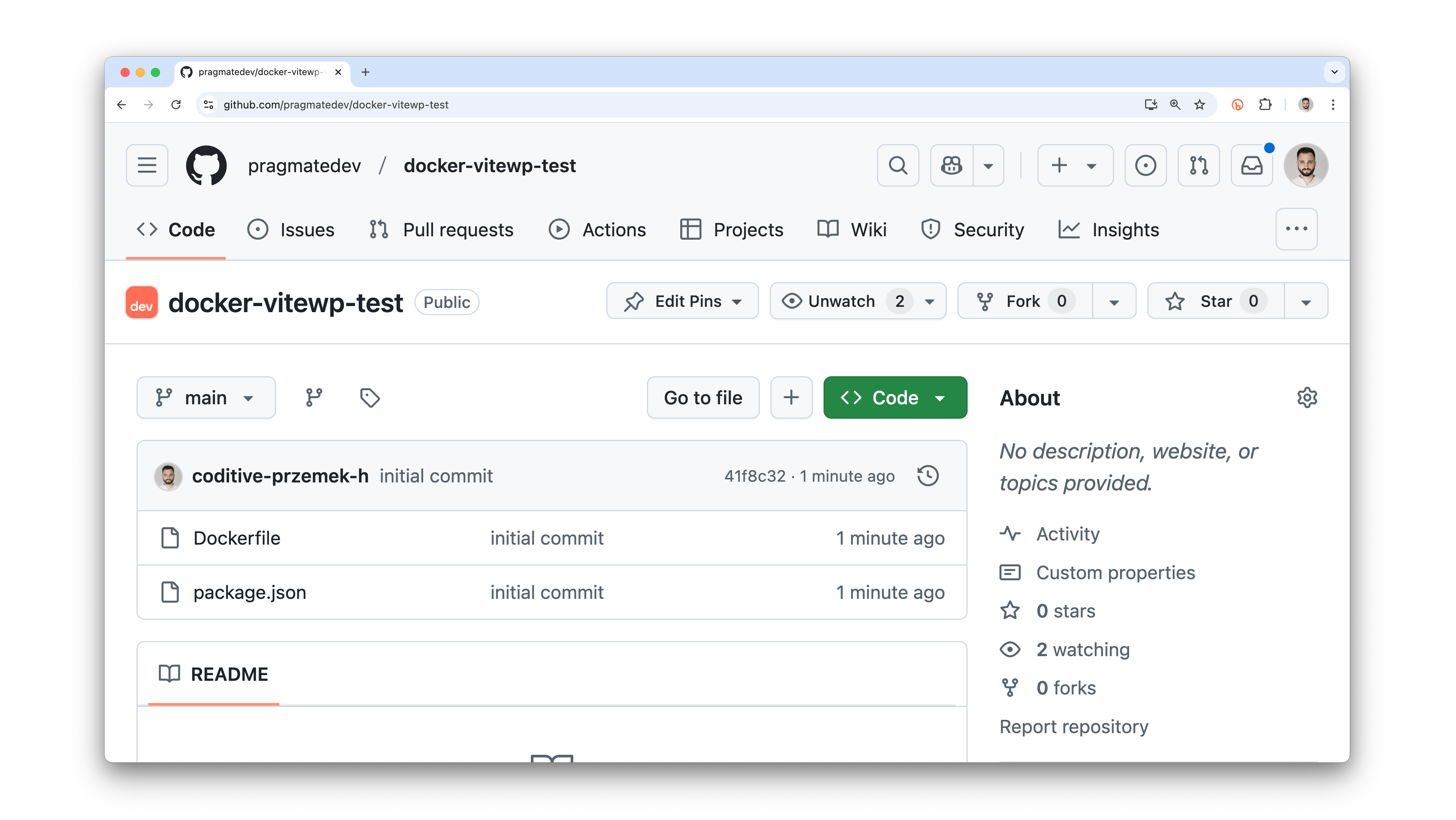
Create a new directory for files and add an empty Dockerfile there. This is the most important file, as it's where you configure the project's environment. I also recommend creating a package.json where you can define tasks, eliminating the need to keep the commands in your mind, and pushing the current state to the repository.
The next step is to define the environment in the Dockerfile. This will be somewhat similar to setting up a clean Linux system. It might seem like a task for a DevOps, but don't worry, you can handle it. My project is to run on PHP 8.2 and Node 22, and support Yarn and Composer.
First, choose the base image on which you will build your container. If you feel confident, you can define everything you need on your own - PHP, its modules, Node, etc. In such a way, you can start with a basic image like ubuntu:latest. I chose the php:8.2 image since it already includes most of the required modules, to which I will only add additional things.
FROM php:8.2
Once you have selected the base image, add additional puzzle pieces and install the missing modules. You can do this using the official instructions. It's like configuring a Linux machine as if you were doing it on your machine, so the official tools documentation will help.
FROM php:8.2

RUN apt-get update \
&& apt-get install -y git zip

RUN curl -fsSL https://deb.nodesource.com/setup_22.x | bash - \
&& apt-get install -y nodejs

RUN npm install --global yarn

RUN curl -sS https://getcomposer.org/installer | php \
&& mv composer.phar /usr/local/bin/composer
Hi Guys! I've been working on something I’m really proud of - a new eBook all about code linting and formatting in web development. It’s filled with practical tips to help you set up the project environment so your code stays clean, consistent, and free of annoying little errors.
The plan is to sell it for $15, but if you're on my newsletter, you’ll get almost 70% discount. Just drop your email below, and you’ll get it for just $5 when it’s ready 🙌
How to publish Docker image?
The process of publishing an image in Docker Hub consists of two steps. First, an image must be built. Next, this image needs to be pushed to the hub. You can find explanations below 👇
How to build a Docker image?
To build a Docker image, use the docker build command along with a few arguments.
docker build . --tag pragmatedev/vitewp-docker-test:latest --platform linux/amd64
docker build .Builds a Docker image from the Dockerfile in the current directory.--tag pragmatedev/vitewp-docker-test:latestGives the image a name and tag.--platform linux/amd64Specifies the platform for which the image should be built. This is useful when you are working on a machine with a different architecture, such as macOS, and want to force compatibility with the server.
How to push a Docker image?
To publish a Docker image, use the docker push command along with a few arguments.
docker push pragmatedev/vitewp-docker-test:latest
docker pushPublishes a Docker image to Docker Hub.pragmatedev/vitewp-docker-test:latestDefines name and tag for the image.
How to find a Docker image?
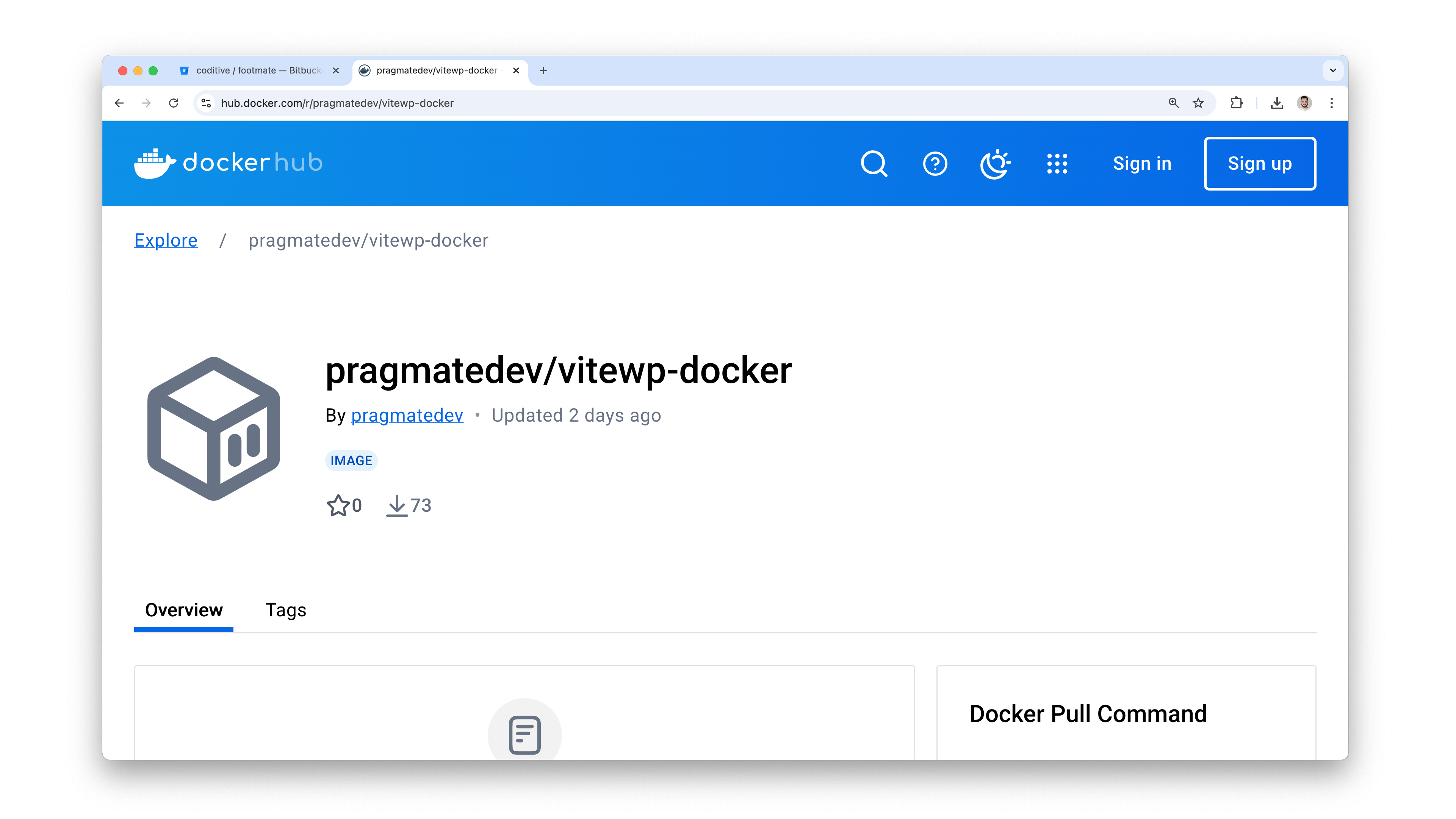
After firing the commands, your image should be pushed to Docker Hub and visible there. You can verify it by visiting the following URL: https://hub.docker.com/r/{image_name}.
How to simplify a process?
To simplify the process and minimize what you need to remember, define tasks in your project's package.json. This allows you to use simple yarn build and yarn push commands.
{
    "scripts": {
        "build": "docker build . --tag pragmatedev/vitewp-docker-test:latest --platform linux/amd64",
        "push": "docker push pragmatedev/vitewp-docker-test:latest",
    }
}
How to use Docker Hub images in Bitbucket Pipelines?
To use the image in your project, open the bitbucket-pipelines.yml file and specify its name in the image key. After committing your changes and triggering the action, it should work fine.
definitions:
  steps:
    - step: &lint
        name: Lint
        image: pragmatedev/vitewp-docker-test
        script:
          - cd wp-content/themes/footmate
          - composer install
          - yarn install
          - yarn lint
        caches:
          - composer
          - node
  caches:
    composer: wp-content/themes/footmate/vendor
    node: wp-content/themes/footmate/node_modules

pipelines:
  custom:
    lint:
      - step: *lint
  pull-requests:
    '**':
      - step: *lint
The keyword is "should." In my case, the first attempt did not succeed, but through simple trial and error, I was able to resolve it. I'm aware that your project will have unique elements that cannot be foreseen, so experimentation might be required.
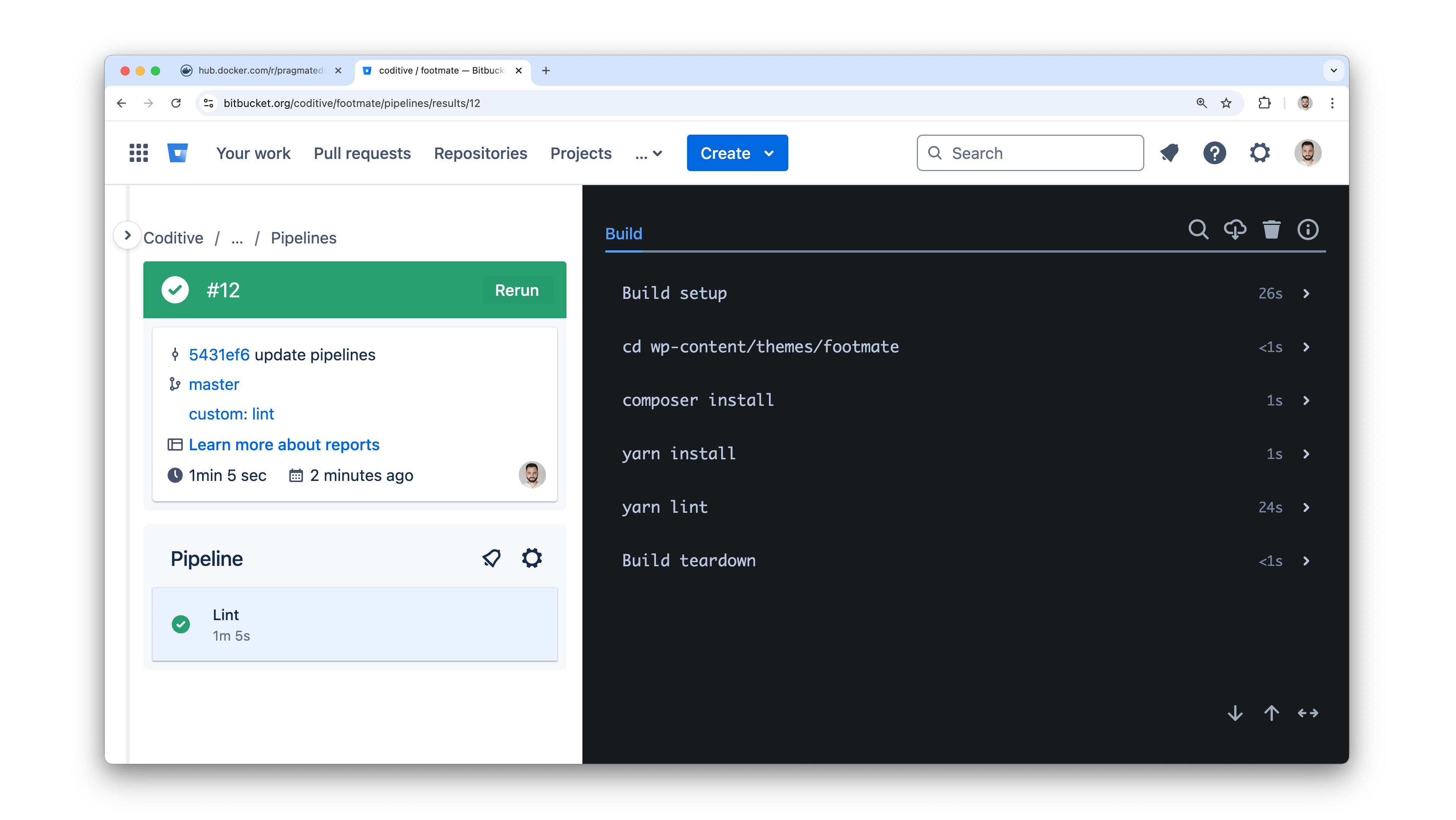
I had to implement several additional modifications in the Dockerfile to ensure compatibility in both Bitbucket Pipelines and GitHub Actions. The majority concerned configurations for additional tools. Below is an example of a working image configuration for my project.
FROM php:8.2

RUN apt-get update \
&& apt-get install -y git zip

RUN curl -fsSL https://deb.nodesource.com/setup_22.x | bash - \
&& apt-get install -y nodejs

RUN npm install --global yarn

RUN curl -sS https://getcomposer.org/installer | php \
&& mv composer.phar /usr/local/bin/composer

RUN git config --system --add safe.directory '*'

ENV COMPOSER_ALLOW_SUPERUSER=1
Thank you so much for joining me in today ❤️ Your support means a lot to me, and it keeps me motivated to create more content. If you enjoyed this video, please consider subscribing to the channel and giving it a thumbs-up - it really helps spread the word. And if you need developers who truly care about quality and delivering great results, visit my company’s site: coditive.com or contact me with the form below. Thanks again and see you next time!
Looking For a Developer Who
Truly Cares About Your Business?
My team and I provide expert consultations, top-notch coding, and comprehensive audits to elevate your success.
Feedback
How satisfied you are after reading this article?